WhatsApp Business
WhatsApp Business Message Templates: 60+ Greeting, Away and Quick Reply Examples
Copy-and-paste WhatsApp Business templates: greeting and away message examples, quick replies, and order, payment and delivery messages, plus setup steps.
By the WAStore team15 min read
In this guide
- The three WhatsApp Business auto replies, explained
- How to set up a greeting message
- Greeting message templates
- How to set up an away message
- Away message templates
- How to create quick replies
- Quick reply templates for the questions you get every day
- Order, payment and delivery templates
- Marketing and re-engagement templates
- Templates for tricky conversations
- How to write WhatsApp messages customers actually reply to
- Common problems and fixes
- When templates aren't enough
- Frequently asked questions
If you sell on WhatsApp, you type the same handful of messages over and over: hi, thanks for your message, here's the price list, we deliver on Tuesdays, here are the bank details. Each one only takes a minute, but across a busy day those minutes add up — and the replies you send at 11 pm after a long day are rarely your best.
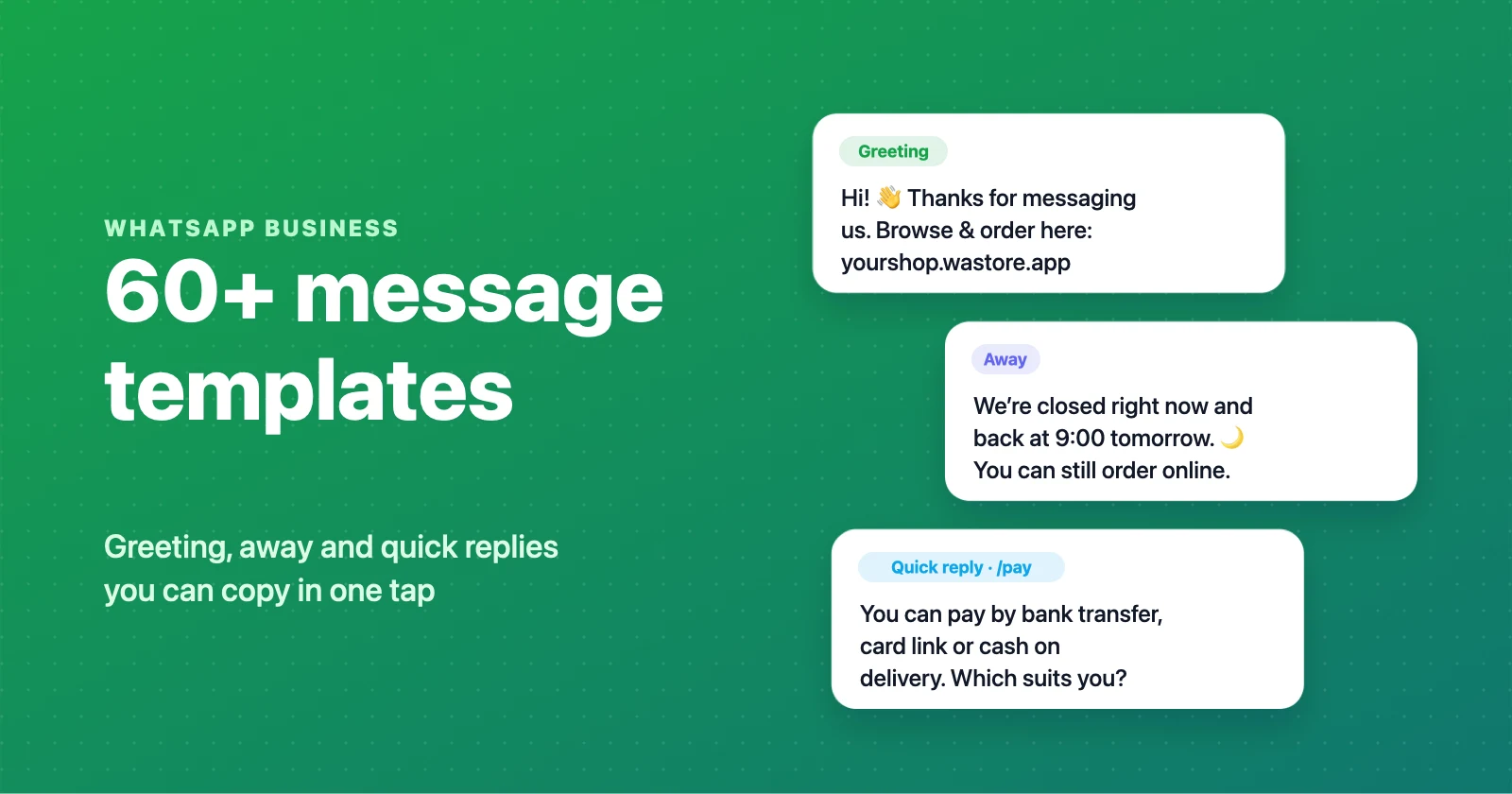
The free WhatsApp Business app has three tools that fix most of this: greeting messages, away messages and quick replies. This guide explains how each one works, how to set it up, and then gives you more than 60 ready-made messages you can copy and adapt. Every template uses placeholders in square brackets — swap in your own details before you save it.
The three WhatsApp Business auto replies, explained
Before you write anything, it helps to know exactly when each message is sent — most "it doesn't work" complaints come from expecting a tool to do something it was never designed to do.
| Tool | When it's sent | How many you can have | Best for |
|---|---|---|---|
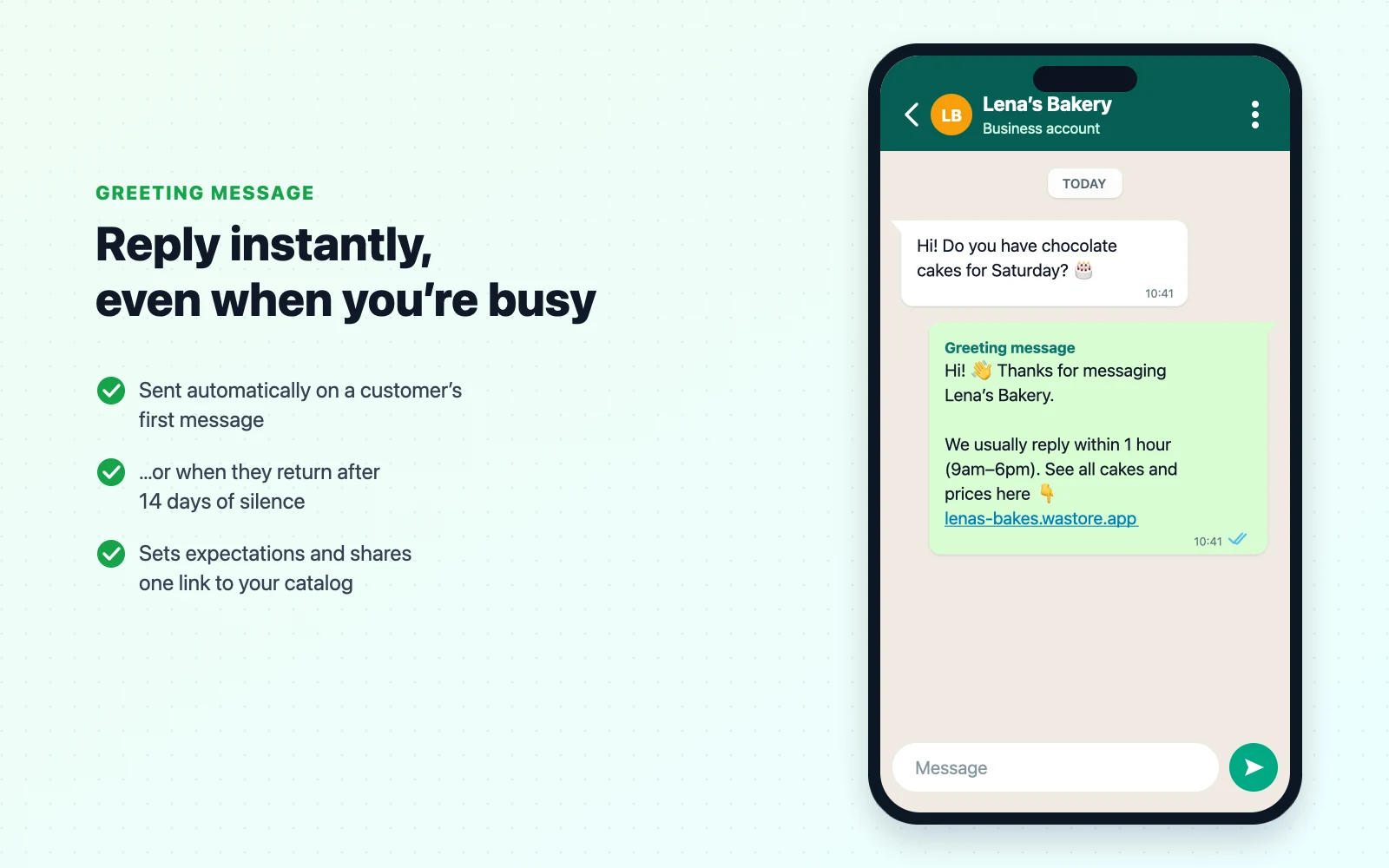
| Greeting message | Automatically, on a customer's first message or after 14 days with no messages | One active message | Welcome, catalog link, response time |
| Away message | Automatically, while you're "away" (always, on a custom schedule, or outside business hours) | One active message | After-hours, weekends, holidays |
| Quick replies | When you type / and pick a shortcut | Up to 50 | Prices, delivery, payment, FAQs |
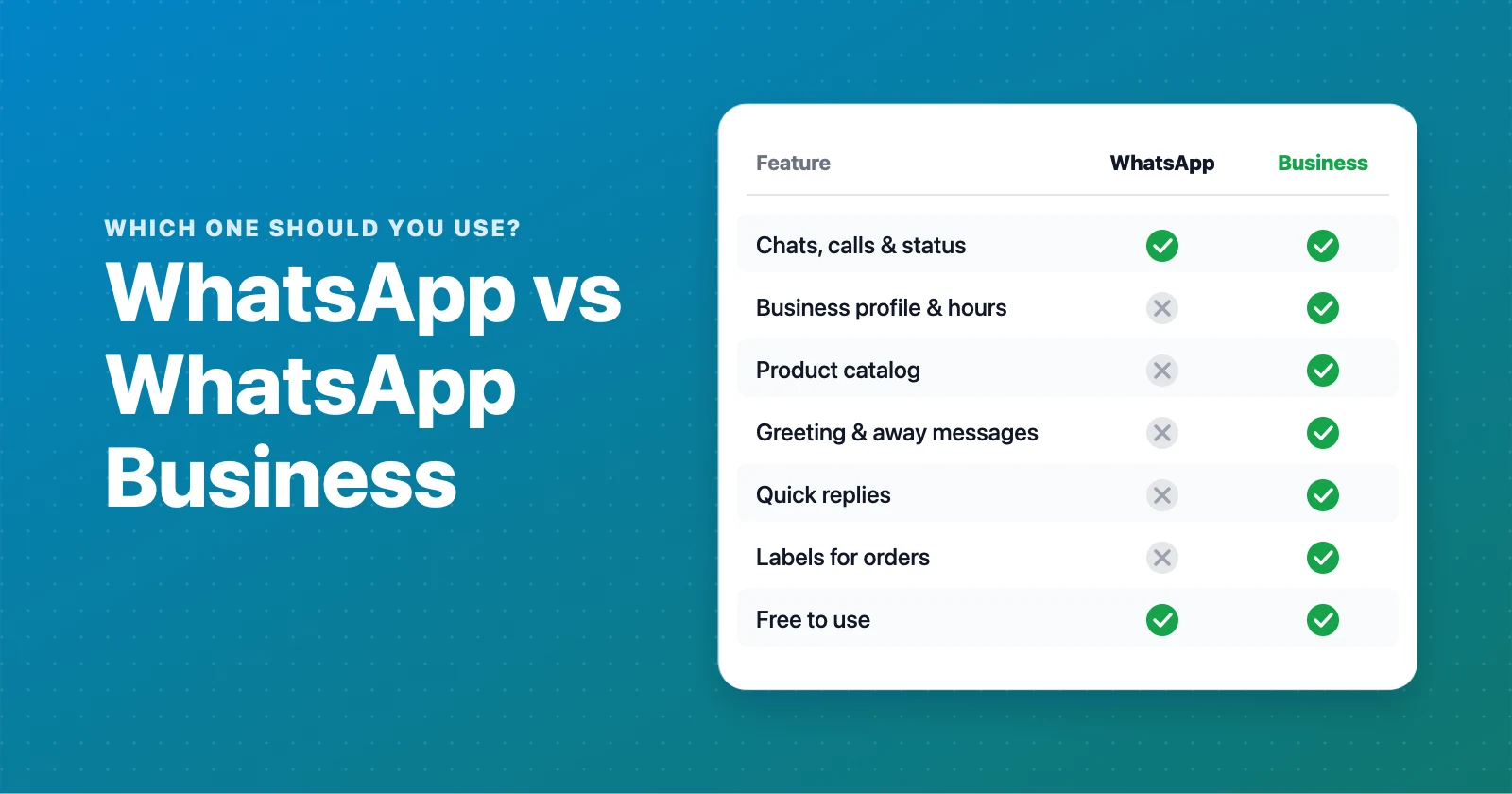
Two limits are worth remembering. First, the greeting and away messages are single, static texts — you can't show a different version to different customers. Second, they are one-way: they can't read the customer's reply or ask a follow-up question. That's fine for most small businesses. If you need branching conversations ("press 1 for orders"), that's chatbot territory and requires the WhatsApp Business Platform — see WhatsApp vs WhatsApp Business for when that's worth it.
How to set up a greeting message
- Open the WhatsApp Business app.
- Go to Settings → Business tools → Greeting message.
- Turn on Send greeting message.
- Tap the message to edit it, paste your text and save.
- Under Recipients, choose who gets it: everyone, everyone not in your address book, everyone except selected contacts, or only selected contacts.
Choosing Everyone not in address book is a good default: regular customers you've saved won't get a "welcome" message every time they come back after a quiet couple of weeks.
Greeting message templates
A good greeting message does three jobs in three or four lines: it says hello, tells people when to expect a reply, and gives them something useful to do right now — usually one link to your catalog. Pick the closest template and make it sound like you.
1. Friendly and simple
Hi! 👋 Thanks for messaging [Business name].
We usually reply within [1 hour] between [9 am and 6 pm]. While you wait, you can see all our products and prices here: [store link]
2. With a link to order
Welcome to [Business name]! 🛍️
The fastest way to order: pick your items here 👉 [store link] and tap "Send order". Your order arrives in this chat with everything we need, and we'll confirm it shortly.
3. Opening hours up front
Hi, thanks for reaching out to [Business name]!
Our hours: Mon–Fri [9:00–18:00], Sat [10:00–14:00]. Messages outside these hours are answered the next working morning.
Browse the full menu anytime: [store link]
4. Food and bakery
Hi! 🍰 Thanks for messaging [Bakery name].
Today's menu and prices: [store link] Order by [3 pm] for next-day pickup or delivery in [area].
Custom cake? Tell us the date, size and flavour and we'll send a quote.
5. Clothing boutique
Hey! 👗 Welcome to [Shop name].
New arrivals drop every [Friday] — see what's in stock and in your size here: [store link]
Questions about fit? Send us a photo of the item and your usual size and we'll help.
6. Services and appointments
Hello and thanks for contacting [Business name].
To book, please send: 1. The service you'd like 2. Your preferred date and time 3. Your name
We'll confirm availability within [2 hours]. Prices: [link]
7. First-order welcome offer
Hi! 👋 Welcome to [Business name].
As a thank-you for your first message, use code [WELCOME10] for [10% off] your first order: [store link]
Valid until [date].
8. Short and professional
Thank you for contacting [Business name]. A member of our team will reply shortly. Our catalog: [store link]
9. Bilingual
Hi! Thanks for messaging [Business name] 👋 ¡Hola! Gracias por escribir a [Business name] 👋
Catalog / Catálogo: [store link]
10. Wholesale and B2B
Hello, thanks for your interest in [Business name].
For wholesale prices, please tell us your business name, city and the products and quantities you need. Our retail catalog is here: [store link]
11. Seasonal or holiday rush
Hi! 🎄 Thanks for messaging [Business name] during our busiest season.
Replies may take a little longer this week, but orders placed through our store go straight into our queue: [store link]
Last order date for delivery before [holiday]: [date].
12. Set expectations for slow replies
Hi, thanks for your message! I run [Business name] on my own, so I reply in batches — usually at [12:00] and [18:00].
To save time, you can order directly here: [store link]
How to set up an away message
- Go to Settings → Business tools → Away message.
- Turn on Send away message and edit the text.
- Choose a Schedule:
- Always send — useful for holidays or when you're temporarily not taking messages.
- Custom schedule — set a start and end date and time.
- Outside of business hours — uses the opening hours in your business profile. Set those first under Settings → Business tools → Business profile.
- Choose Recipients, the same way as for the greeting message.
Away message templates
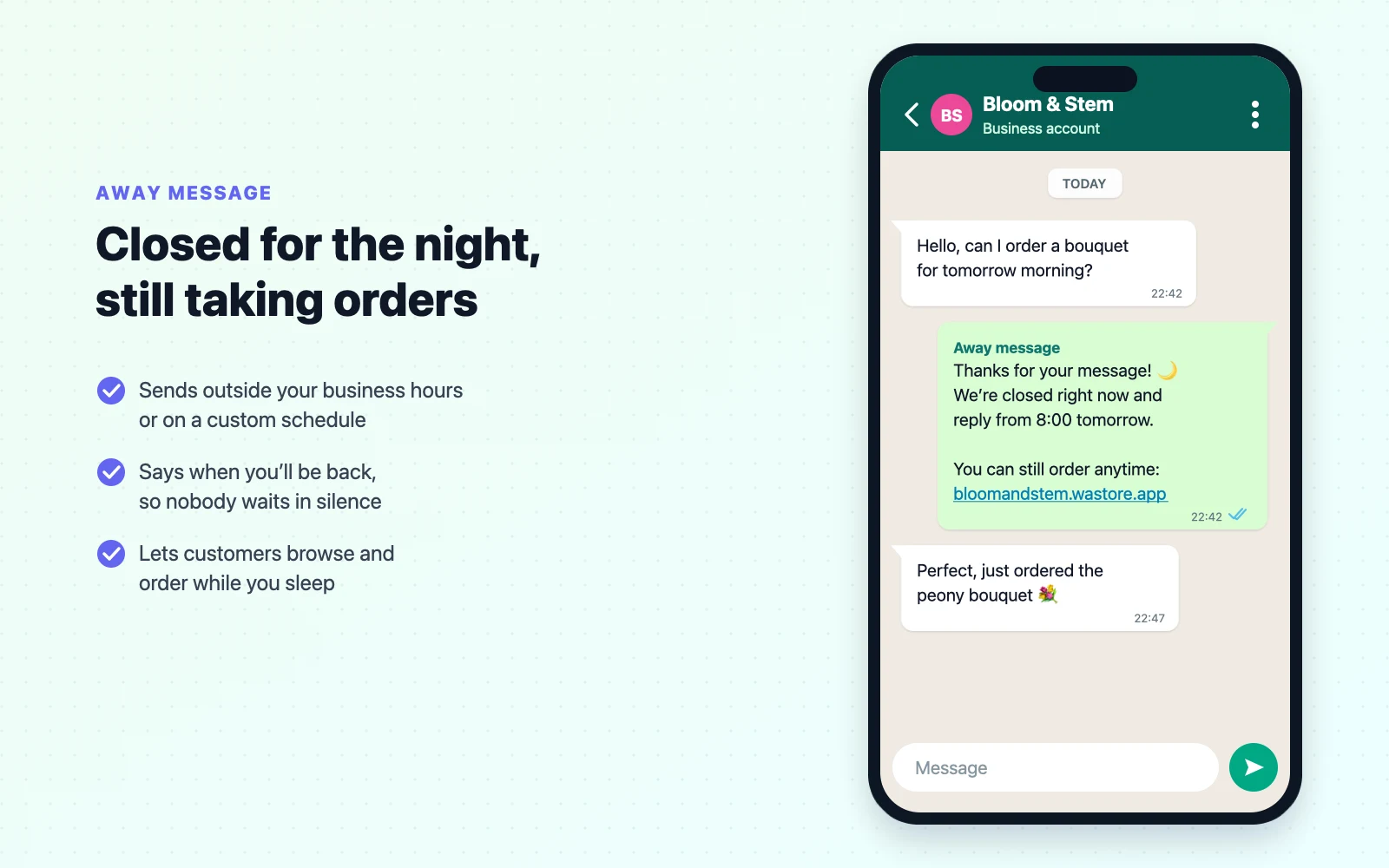
The difference between a forgettable away message and a useful one is the second line. "We're closed" stops the conversation. "We're closed — but you can still order here" keeps the sale.
13. After hours
Thanks for your message! 🌙 We're closed right now and will reply when we open at [9 am].
You can still browse and place your order anytime: [store link]
14. Weekend
Hi! We're away for the weekend and back on Monday at [9 am].
Orders placed over the weekend are packed first thing Monday: [store link]
15. Vacation or closed for a few days
Hi, thanks for messaging [Business name]. We're closed from [date] to [date] for a short break. 🌴
We'll reply to every message when we're back on [date]. Orders placed now will ship on [date].
16. Public holiday
Happy [holiday]! 🎉 We're closed today and will be back tomorrow at [time].
Our store stays open online: [store link]
17. Lunch break
We're on a short break and back at [2 pm]. Your message is safe with us — we'll reply as soon as we're back. 🙂
18. Very busy
Thanks for your patience! We're handling a lot of orders today, so replies may take up to [3 hours].
Ready to order? Use our store and we'll confirm in the order we receive them: [store link]
19. Different time zone
Hi! We're based in [city], where it's currently outside working hours. We'll get back to you within [12 hours].
Prices, sizes and shipping info: [store link]
20. Market day or event
We're at [market or event name] today and replies will be slow. Come say hi at stand [number]! 👋
Can't make it? Order online: [store link]
21. Temporarily not taking orders
Hi, thanks for your interest! We've paused new orders until [date] while we catch up.
We'll message you as soon as we reopen. Thanks for understanding. 🙏
22. Urgent contact
We're closed right now and back at [9 am]. If your message is about an order arriving today, call us on [phone number].
How to create quick replies
- Go to Settings → Business tools → Quick replies.
- Tap + to add a new one.
- Type the message. You can attach a photo or video, which is handy for a size chart or a map.
- Add a shortcut — a short keyword, like
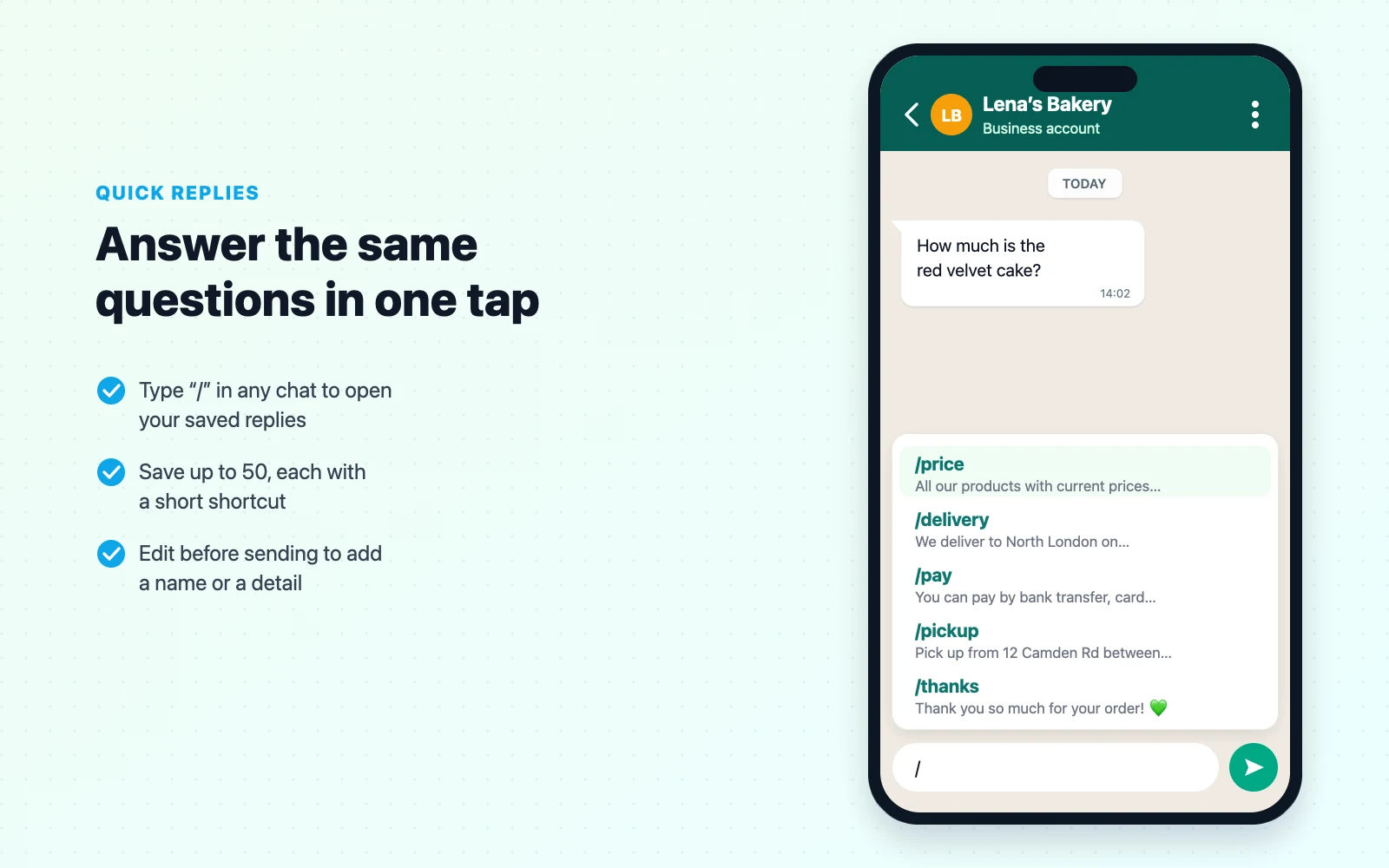
price. - Save. In any chat, type
/and the shortcut (or scroll the list) to insert the message, edit it if you need to, then send.
You can save up to 50 quick replies, which is plenty. The trick is choosing shortcuts you'll actually remember. Name them after what the customer asked, not what the message says: /delivery, not /shipping-policy-v2.
Quick reply templates for the questions you get every day
These cover the messages most small shops send daily. The shortcut is in each title.
23. /price — prices and catalog
All our products with current prices are here: [store link]
Tap any item to see photos and details, add it to your cart, and send the order straight to this chat. 🛒
24. /order — how to order
Ordering is easy: 1. Open [store link] 2. Add the items you want to your cart 3. Tap "Send order" — it arrives here with all the details
We'll confirm availability and the total within [1 hour].
25. /stock — is it available?
Good news — it's in stock! ✅ How many would you like, and is it for pickup or delivery?
26. /sold — out of stock
Sorry, that one has just sold out. 😕 We expect more on [date]. Would you like me to message you when it's back, or can I suggest something similar?
27. /delivery — delivery details
We deliver to [areas] on [days]. Delivery fee: [amount], free over [amount]. Orders placed before [time] arrive [next day / within 2–3 days].
28. /pickup — pickup details
You're welcome to pick up from [address] between [hours]. 📍 Here's the map: [map link]
Please bring your order number or the name you ordered under.
29. /pay — payment options
You can pay by: • Bank transfer • [Mobile money / UPI / card link] • Cash on [delivery / pickup]
Which works best for you?
30. /bank — bank transfer details
Bank transfer details: Account name: [name] Bank: [bank] Account / IBAN: [number] Reference: your name and order number
Please send a screenshot of the transfer once it's done. Thank you! 🙏
31. /paid — payment received
Payment received, thank you! ✅ Your order is confirmed and we'll [ship it / have it ready] on [date].
32. /size — size help
Happy to help with sizing! Could you tell me your height and the size you usually wear in [brand or shop]? Here's our size chart for reference. 👇
33. /custom — custom orders
We love custom orders! To prepare a quote, please send: • What you'd like (a photo or example helps) • Quantity • The date you need it by
We'll reply with a price and timeline.
34. /hours — opening hours
Our hours: Mon–Fri [9:00–18:00], Sat [10:00–14:00], closed Sunday. You can order online 24/7: [store link]
35. /location — address
We're at [full address]. 📍 [map link]
Parking: [details].
36. /wholesale — bulk pricing
We offer wholesale pricing from [quantity] units. Please share your business name, the products and quantities you need, and your delivery city, and we'll send a quote.
37. /return — returns and exchanges
You can return or exchange unused items within [14 days] of delivery. Just reply with your order number and a photo of the item, and we'll arrange it.
38. /thanks — thank you after an order
Thank you so much for your order! 💚 It means a lot to a small business like ours. If you have a moment, a quick review helps others find us: [review link]
39. /follow — follow-up after no reply
Hi [Name], just checking in — would you still like to go ahead with [item]? I'm holding it for you until [day].
40. /later — I'll get back to you
Great question — let me check and get back to you within [time]. 🙂
41. /cancel — order cancelled
No problem, your order has been cancelled. If you've already paid, we'll refund you within [3–5 working days]. Hope to see you again soon!
42. /track — tracking
Your order is on its way! 🚚 Track it here: [tracking link]. Expected delivery: [date].
Order, payment and delivery templates
Once someone buys, the questions change: did you get my order? when will it arrive? did my payment go through? Sending these updates before customers ask makes a small shop feel organised and trustworthy.
43. Order confirmation
Hi [Name], thanks for your order! ✅
Order #[number] [Items] Total: [amount]
We'll have it [ready for pickup / delivered] on [date]. Reply here if anything needs to change.
44. Payment reminder (gentle)
Hi [Name], a friendly reminder that order #[number] ([amount]) is waiting for payment. Once it's in, we'll send it out the same day. Payment details: [details]
45. Order ready for pickup
Good news, [Name]! Your order #[number] is ready for pickup at [address]. We're open until [time] today. 📦
46. Out for delivery
Your order is out for delivery and should arrive between [time] and [time] today. Please keep your phone nearby. 🛵
47. Delivered — check-in
Hi [Name], your order should have arrived. Is everything okay? If anything's not right, reply here and we'll sort it out quickly.
48. Review request
Hi [Name], we hope you're enjoying your [product]! Would you leave us a short review? It takes 30 seconds and really helps: [review link] ⭐
49. Delay apology
Hi [Name], we're sorry — your order #[number] is running [1 day] late because of [reason]. It will now arrive on [date]. Thanks for your patience; we've added [a small extra] to your package.
50. Restock notice
Hi [Name], the [product] you asked about is back in stock! 🎉 We have [number] left: [product link]
Marketing and re-engagement templates
Use these sparingly, and only for customers who have messaged you before or asked to hear from you. Anyone can block or report a business, and WhatsApp watches those signals.
51. New arrivals
Hi [Name]! New this week at [Business name]: [product 1], [product 2] and [product 3]. 👀 See them here: [store link]
52. Limited-time offer
Hi [Name], this weekend only: [offer] with code [CODE]. Ends [Sunday at midnight]. Shop here: [store link]
53. Back-in-business
We're back! 🎉 [Business name] is open again from today. Thanks for waiting — here's what's new: [store link]
54. Win back a past customer
Hi [Name], it's been a while! We've added [new products] since your last order. Here's [10% off] if you'd like to come back: [CODE] 💚
55. Opt-in confirmation
Thanks for subscribing to updates from [Business name]! We'll message you about new products and offers about [twice a month]. Reply STOP anytime and we'll remove you.
Templates for tricky conversations
56. Price objection
I understand! Our prices reflect [handmade quality / local ingredients / the warranty]. If you'd like something more budget-friendly, [product] is a great option at [price].
57. Complaint
I'm really sorry to hear that, [Name]. Thank you for telling us. Could you send a photo so we can see what happened? We'll make it right — either a replacement or a refund, whichever you prefer.
58. Can't fulfil the request
Thanks for thinking of us! Unfortunately we can't do [request] right now. [Alternative] might work instead — would you like details?
59. Haggling politely declined
Thanks for asking! Our prices are fixed so they stay fair for everyone, but orders over [amount] get free delivery. 🙂
60. Ending the chat warmly
Happy to help! Message us anytime — and have a great [day / weekend]. 👋
61. Asking for a referral
Thank you for being a regular, [Name]! If a friend would like [your products], send them this link and they'll get [a free extra] on their first order: [store link]
How to write WhatsApp messages customers actually reply to
Templates get you started; these habits make them work.
Keep each message to one job. A greeting that also explains payment, delivery, returns and a promotion gets skimmed. Say hello and give one link; save the details for quick replies.
Lead with what the customer wants. "Here are today's prices" beats "Thank you for contacting us, we value your business."
Set honest expectations. "We reply within 2 hours" is better than "We'll reply ASAP", and much better than promising instant replies you can't keep.
Use placeholders, then personalise. Quick replies are inserted into the text box before they're sent, so add the customer's name or the product they asked about before you hit send. It takes two seconds and reads as human.
End with a question or a next step. "Pickup or delivery?" gets a reply. "Let us know if you have questions" usually doesn't.
Use formatting lightly. WhatsApp supports *bold*, _italics_ and line breaks. Bold one important line, like the total or the deadline — not the whole message.
Write the way you talk. A home baker and a law firm shouldn't sound the same. If you wouldn't say it out loud to a customer at your counter, rewrite it.
Common problems and fixes
"My greeting message isn't sending." It only goes to people messaging you for the first time or after 14 days of silence, and only to the recipients you selected. Test it from a number that has never messaged your business.
"My away message isn't working." Check that the schedule is set correctly and that business hours exist in your profile if you chose Outside of business hours. Away messages are sent from your phone, so it needs an internet connection. They are also not sent in groups.
"Quick replies don't show up when I type a slash." Make sure you're using the WhatsApp Business app rather than regular WhatsApp, and that the shortcut is spelled exactly as saved. On WhatsApp Web, quick replies work the same way: type / in the message box.
"I need different messages for different customers." The free app supports one greeting and one away message. Labels and quick replies get you a long way; true segmentation needs the Business Platform (API) and a provider.
When templates aren't enough
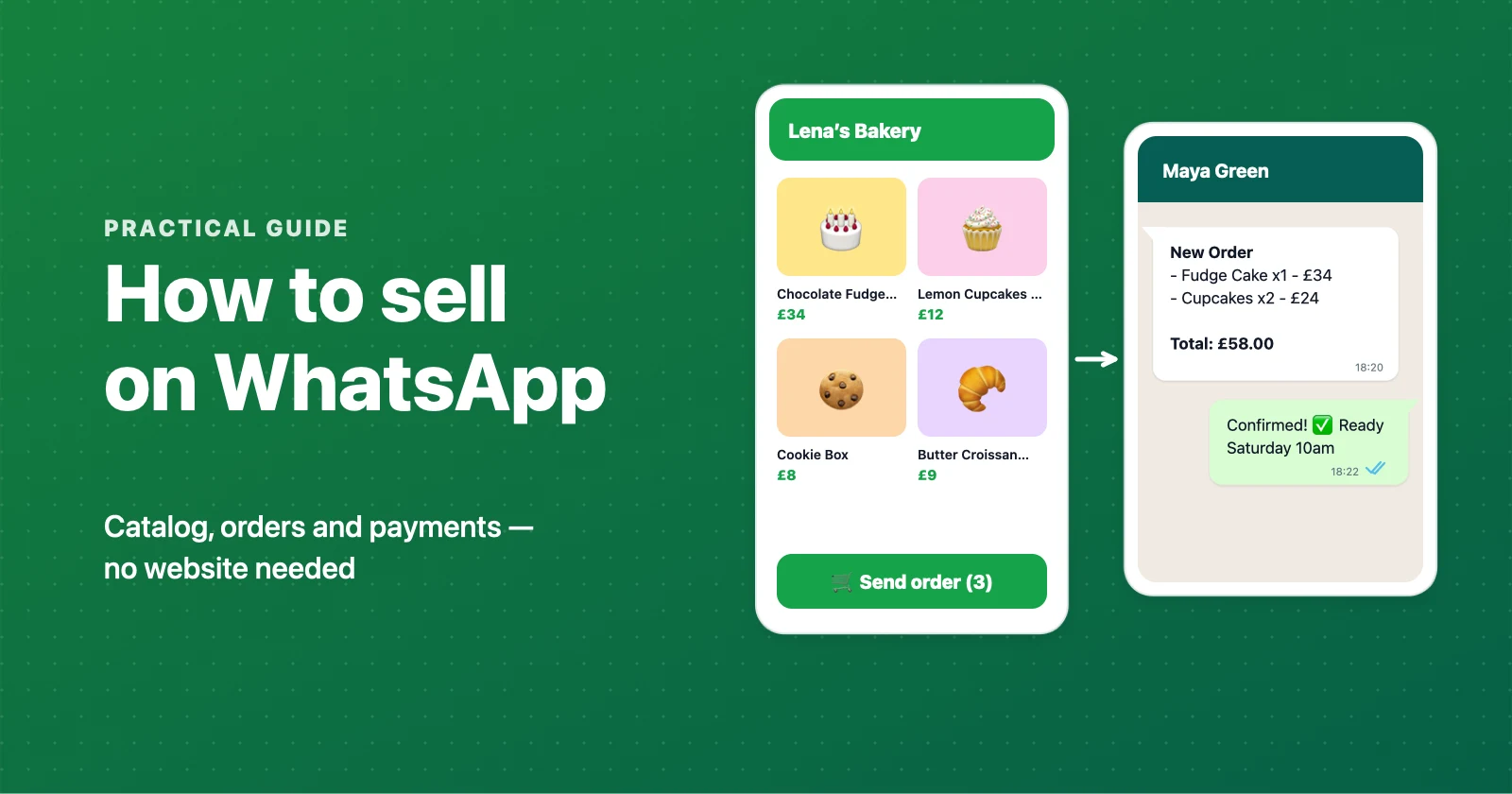
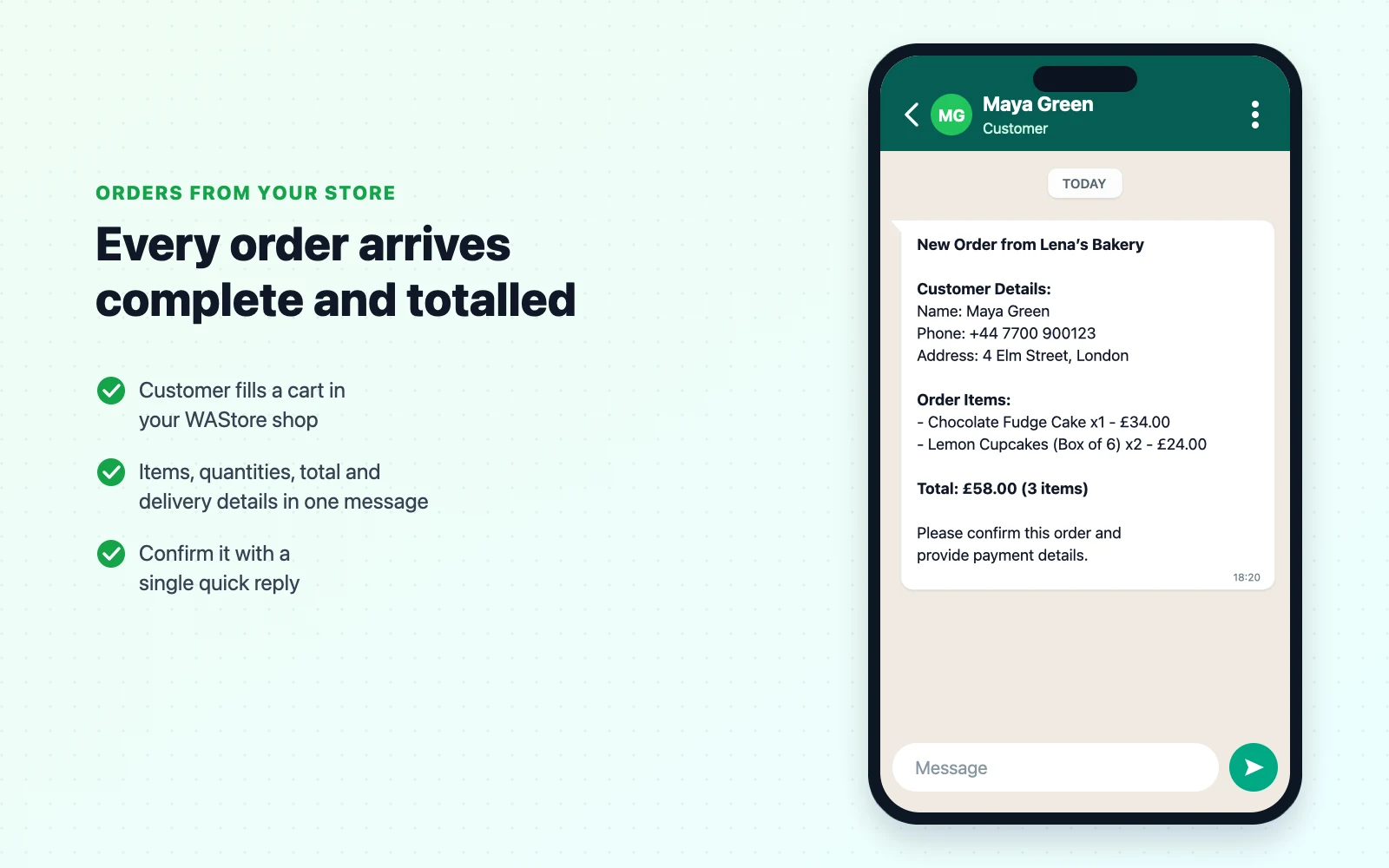
Templates save you typing, but you are still the one copying prices, adding up totals and asking for the address. If you're handling more than a few orders a day, the bigger time-saver is to let customers build the order themselves.
That's what a WhatsApp store does. You add your products once; customers browse, fill a cart and send you a complete order message. Your greeting and away messages then only need one link, and most of your quick replies become confirmations instead of explanations. WAStore does this for free for up to 50 products — setup takes about 90 seconds, and orders still land in your normal WhatsApp chat.
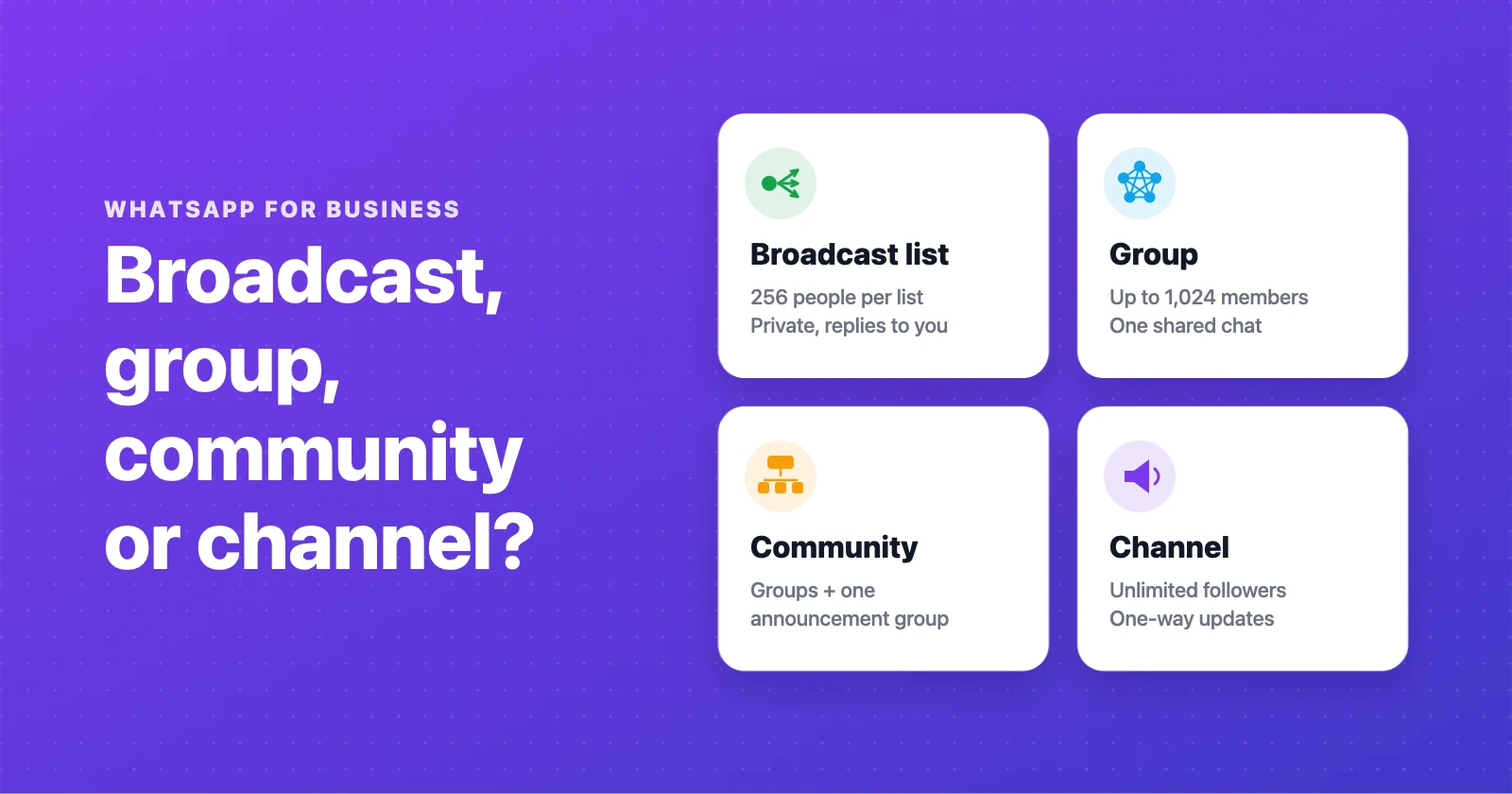
For the bigger picture of running sales through chat, read how to sell on WhatsApp, and if you're deciding how to reach many customers at once, see broadcast lists vs groups vs communities.
Frequently asked questions
How do I set up a greeting message in WhatsApp Business?
Open the WhatsApp Business app, go to Settings, then Business tools, then Greeting message. Turn on Send greeting message, write your text, choose who receives it (everyone, people not in your address book, or a custom list) and save.
When does the WhatsApp Business greeting message get sent?
The greeting message goes out automatically when someone messages your business for the first time, or when they message you again after 14 days with no activity in the chat. It is not sent on every message.
Why is my WhatsApp away message not working?
Check three things: that the away message is switched on, that the schedule is right (Always send, Custom schedule, or Outside of business hours, which needs business hours set in your profile), and that your phone has an internet connection, because away messages are sent from your device. Away messages are also not sent in group chats.
How many quick replies can I save in WhatsApp Business?
The WhatsApp Business app lets you save up to 50 quick replies. Each one has a shortcut you type after a slash, for example /price or /delivery, and it can include a photo or video.
Can I send different greeting messages to different customers?
Not in the free app. WhatsApp Business allows one active greeting message and one away message at a time. You can choose who receives them, but not show different texts to different people. For branching replies you need a chatbot on the WhatsApp Business Platform (API).
Should I put prices in my greeting message?
Usually not. Prices change, and a long greeting is easy to skip. Put one link to your catalog or online store in the greeting instead, so customers can browse current prices and order without waiting for you.
Are emojis okay in business messages on WhatsApp?
Yes, in moderation. One or two emojis make a message feel friendly and easy to scan. Avoid long rows of emojis, all caps and lots of exclamation marks, which read as spam.
What is the difference between WhatsApp Business templates and the app's automated messages?
In the free WhatsApp Business app, templates are simply texts you save as quick replies, greeting or away messages. On the WhatsApp Business Platform (API), message templates are pre-approved formats that Meta reviews and charges for when a business starts a conversation.
Build a free WhatsApp store in about 90 seconds
Catalog, cart and WhatsApp orders — free for up to 50 products.
Get started